

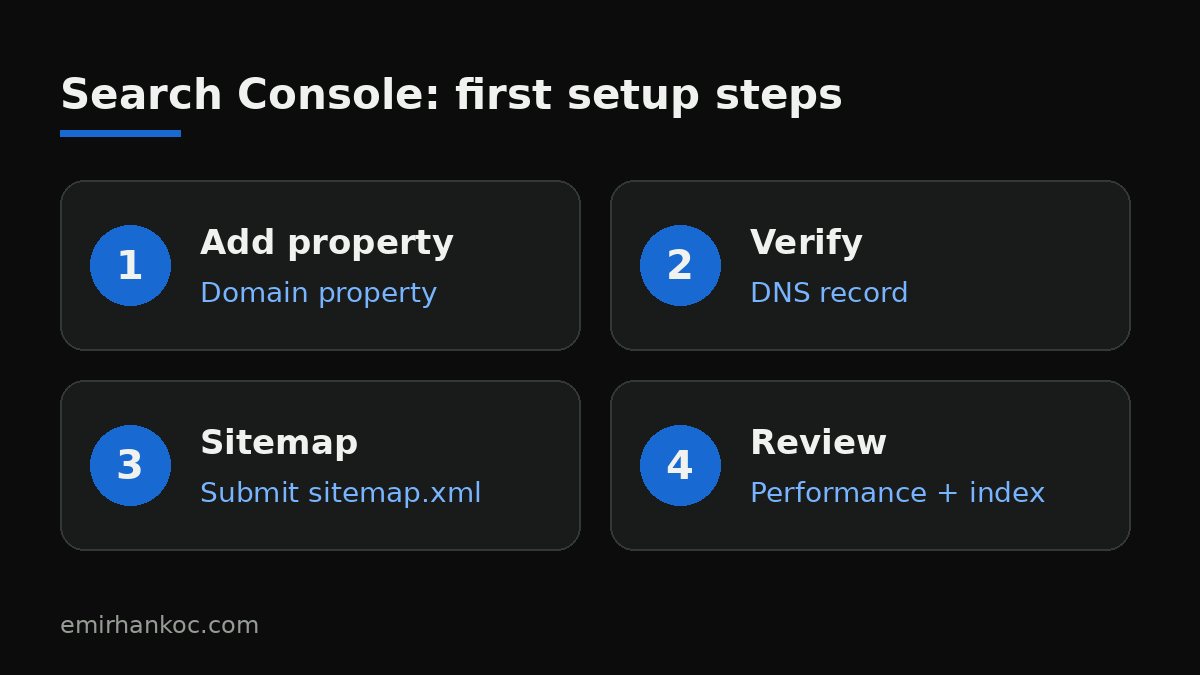
The short answer to how to use Google Search Console: add your site as a domain property, verify it with a DNS record, submit your sitemap, and then check the Performance and Page indexing reports regularly. This free tool shows you how Google sees your site and which queries you appear for, using Google's own data.
The clearest lesson I've learned building websites and managing ads and SEO since 2015 is this: doing SEO without Search Console is like driving a car without a dashboard. In this guide I explain how I set the tool up from scratch, which reports I check and how often, and how I read the data.
What is Google Search Console and what is it for?
Search Console is a free monitoring tool Google offers to site owners. Adding your site doesn't change your rankings on Google; it simply lets you see your performance and catch problems early. While Google Analytics tells you what visitors do on your site, Search Console tells you what happens in search results before they even arrive.
In short, it answers these questions:
- Which searches does my site appear in, and how often is it clicked?
- Which of my pages are indexed, and why are some not?
- How fast are my pages for real users?
- Has Google detected a security issue or a manual action on my site?
Step-by-step setup
1. Choose the property type
There are two options. A domain property (e.g. examplecompany.com) groups all subdomains and http/https versions under one roof. A URL-prefix property covers only pages that start with the exact address you enter. I start with a domain property on almost every project, so www and non-www versions or a blog subdomain don't slip through the cracks.
2. Verify ownership
A domain property can only be verified with a DNS record. Search Console gives you a TXT record, which you add in the DNS panel of your domain registrar or hosting provider. URL-prefix properties offer more methods, such as an HTML file, a meta tag or Google Analytics. Good news for those who didn't know: Google starts collecting data as soon as the property is added, although it may take a few days for data to appear.
3. Submit your sitemap
In the Sitemaps section, enter your sitemap.xml address and submit it. Most content management systems generate this file automatically. The report also shows any errors Google ran into while processing it.
4. Add your team
Instead of giving your password to your agency or developer, grant access to their own Google accounts under Settings → Users and permissions. That way, revoking access when a team changes takes a single click.
The Performance report: clicks, impressions, CTR and position
This is where you'll spend most of your time. There are four metrics:
- Impressions: how many times a link to your page was seen in search.
- Clicks: how many times those links were clicked.
- CTR (click-through rate): clicks divided by impressions.
- Average position: where you appear in the results on average.
My most useful habit in practice is sorting the Queries tab by impressions. Queries with many impressions but few clicks point to pages whose titles and descriptions need rewriting. You can use the SEO length tool to check title and description length. Queries with an average position between 8 and 20 are "threshold" opportunities that a small content update can bring closer to page one.
How to read Search Console when traffic drops
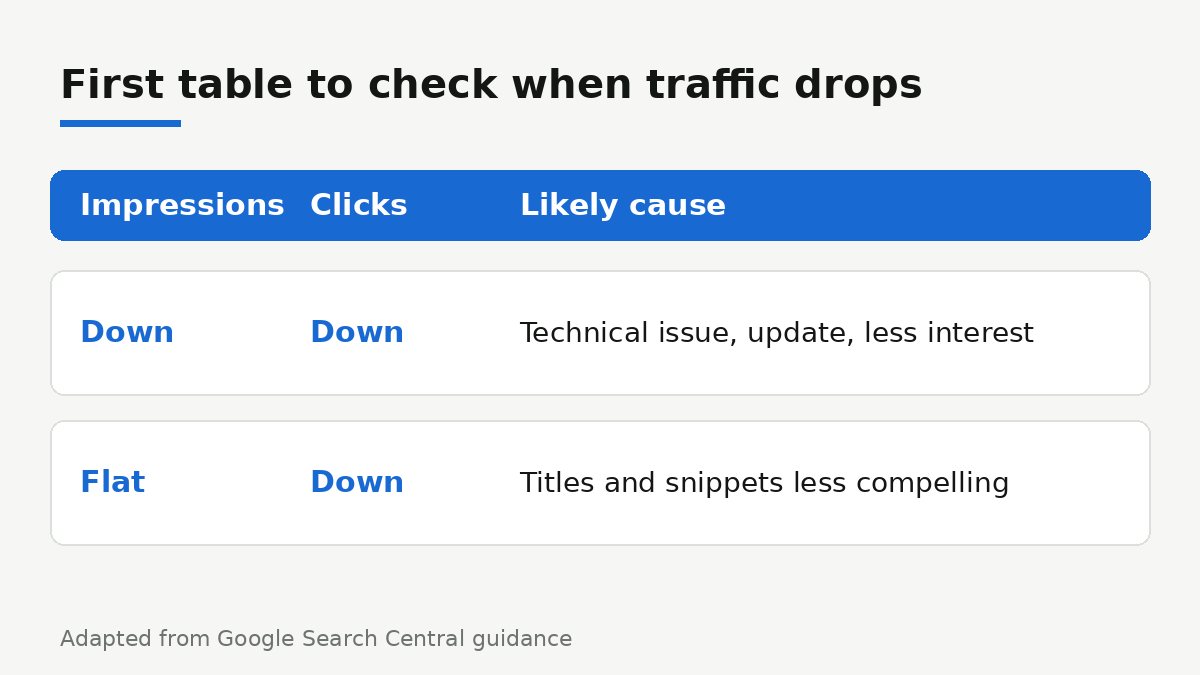
Before panicking, choose the last 16 months in the date filter; if the drop repeats at the same time every year, it's most likely seasonal. Then use the Compare tab to compare the last three months with the previous period or the same period last year. Google's guide to debugging traffic drops recommends the same order and advises looking at impressions and clicks first:
- If both dropped: it could be a technical problem, an algorithm update, a security issue or declining interest in the topic.
- If impressions are flat but clicks fell: your titles and search appearance are less compelling than before.
Find the pages that lost the most in the Pages tab. If the drop is site-wide, move on to the Page indexing report; if it's limited to a few pages, use the URL Inspection tool.
Indexing, URL Inspection and Core Web Vitals
The Page indexing report splits your pages into indexed and not indexed, and states the reason. It's the report I check most often in the first week after launching a new site; a template accidentally left on "noindex" or a redirect error shows up here right away.
URL Inspection lets you test a single address as it exists in Google's index or its live version. For a page you've just published or significantly updated, you can request indexing from here.
The Core Web Vitals report summarizes how your pages perform for real users. For a general check of speed and technical health, you can also try our site check tool.
Visibility in AI search
One of the most important additions of 2026 is Google's generative AI performance report. According to Google, it was rolled out to all websites worldwide as of August 31, 2026, and shows your impressions in AI Overviews and AI Mode by page, country and device. Sites without enough impressions may not see the report yet. You can also read my post on Google AI Mode, which covers this topic more broadly.
My weekly check routine
- Performance: compare the last 28 days with the previous period and look at the biggest falling and rising queries.
- Indexing: check for any new error types.
- Manual actions and Security issues: make sure they're empty.
- Check newly published pages with URL Inspection.
This routine doesn't take long, but it lets me catch problems before they grow. If you'd like help turning the data into a concrete roadmap, take a look at my SEO service page.
Frequently Asked Questions
Is Google Search Console paid?
No, it's completely free. All you need is a Google account and the access to prove you own the site.
Does adding a site to Search Console improve rankings?
No. As Google itself states, adding a property doesn't change how you appear in search results. The benefit comes from seeing the data and making the right fixes.
What's the difference between Search Console and Google Analytics?
Search Console measures visibility in search: impressions, clicks and queries. Analytics measures the behavior of visitors who reach your site. Linking the two and using them together gives the clearest picture.
How far back can I see data?
In the Performance report you can select the last 16 months in the date filter. If you want to keep a longer history, you can use the Search Console API or bulk data export.
Setting up Search Console takes less than an hour; the real value comes from the habit of checking it regularly. If you'd like to interpret your site's data together, feel free to get in touch.