
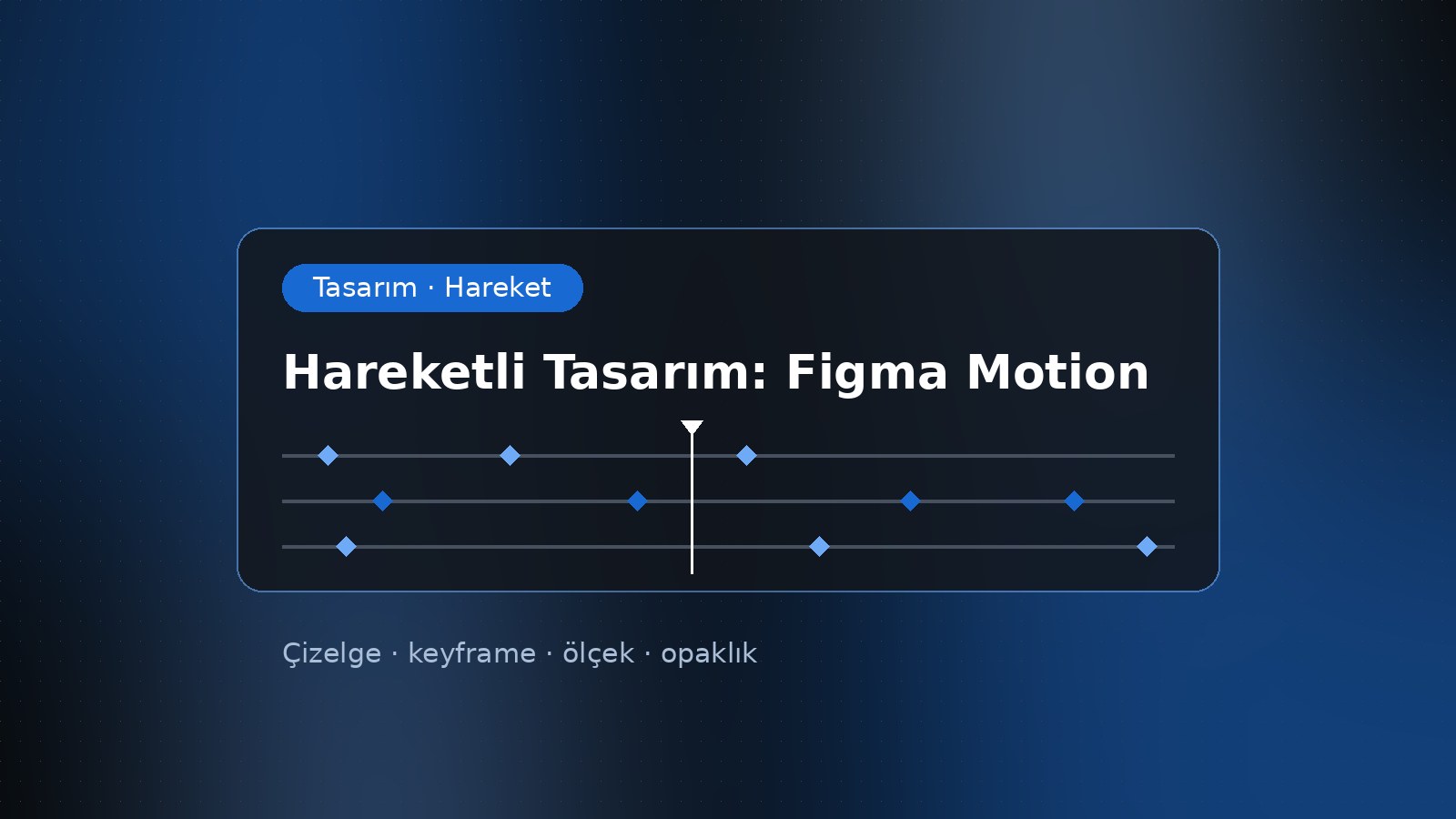
Figma Motion is a timeline-based animation tool built into the Figma design canvas, so you can now animate a screen, a button or a social media visual in the same file without switching to another app. With the update released on September 30, 2026, Motion gained reusable animation styles, audio support, text animation and Lottie export. That makes it a real opportunity to turn motion design into a scalable part of a brand's identity.
I have been working in web, graphic and video design since 2015. One of the problems I ran into most over the years was this: the static design lived in one place, the animation in another, and the version that reached developers somewhere else entirely. The reason I find Figma Motion important is that it has a real chance of closing that gap. In this post I explain what changed, where it helps and how a brand can get started today.
What is Figma Motion and when did it arrive?
Figma announced Motion at its Config event on June 24, 2026. When you switch a frame to Motion mode, a timeline opens next to the design. You can drag layers to adjust timing and create independent keyframes for position, scale, rotation and opacity. There is also an auto-keyframing mode that records the changes you make while the playhead moves.
For me the critical part is components: an animation added to a component travels with it across files. You define a button's "press" motion once, and wherever that button is used, the motion comes along. Motion variables can be defined for values such as easing, and when they are switched at page level, every animation that references them updates.
What changed with the September update?
The first release in June was a solid foundation, but custom styles were still marked "coming soon." With the update published on September 30, Motion in open beta gained the following capabilities:
- Custom animation styles: Save easing, duration and other variable-backed properties as a style and use it across all your designs. Styles can be combined, saved as a single pattern and published to libraries.
- Audio on the timeline: Drag an audio file straight onto a clip, then trim, split and position it against keyframes. Export with audio is limited to MP4 and WebM.
- Text animation: Animate a text layer by character, word or line; the text stays editable after the animation is applied.
- Lottie and dotLottie export: Supported animations can now be exported in these formats.
Why does it matter for brands?
For a long time brand identity was thought of as a logo, colors and typography. Today, how a brand "moves" is part of its identity too: feeling the same rhythm when an app opens, when a product card appears or when a headline enters a Reels video creates consistency. Working with large retail and luxury brands on the agency side, what I saw was that this rhythm was usually entrusted to the memory of a few people rather than to a written rule.
Being able to publish animation styles to libraries can change that. Just as we do with color and text styles, motion can now become a defined, named and shared system. That makes it easier to use the same motion language across web and app interfaces as well as social media content.
Design-to-developer handoff: fewer interpretation gaps
According to Figma's announcement, the Motion tab in Dev Mode shows the full timeline, and developers can copy the animation as CSS, JSON, React or motion.dev code. Export to MP4, GIF, SVG and WebM is also available for rendered assets.
On the Lottie side, some caution is needed. According to LottieFiles' guide, springs, shaders, audio sync and complex masks may not convert cleanly, and some motion may need to be rebuilt by hand. My advice is simple: use video formats for content people will watch (social media, presentations, demos), and Lottie or dotLottie for lightweight animations that run inside an interface. Always compare the converted file with the original.
Practical tips to get started now
- Start small. Pick the three or four most-used components, such as buttons, tab transitions and notifications, and define their motion.
- Create a "motion vocabulary." Set three durations for fast, medium and slow, plus a few easings for entrance, exit and emphasis. Save them as animation styles.
- Decide the destination first. Will the animation be watched, embedded in a page or controlled by the user? Choose the format accordingly.
- Don't forget accessibility. Some users turn on the reduce-motion setting on their devices. On the web, the prefers-reduced-motion media query lets you serve them a calmer version.
- Check your plan. According to Figma, Starter users get Motion with limited exports, while full design system integration and the Figma agent for Motion are available on paid plans only.
- Remember it is a beta. Before tying a critical campaign entirely to a beta tool, test your workflow on a small project.
Conclusion
Figma Motion does not replace professional video tools like After Effects; they are still needed for work that involves footage and compositing. But for interface animation, micro-interactions and quick social media content, bringing design and motion into one place is a serious time saver, especially for small and mid-sized teams. It is also a good moment for brands in Turkey that are newly investing in digital: including motion from the start when building a design system is much easier than adding it later. If you would like to shape your brand's motion language together, you can reach me through the contact page on this site.